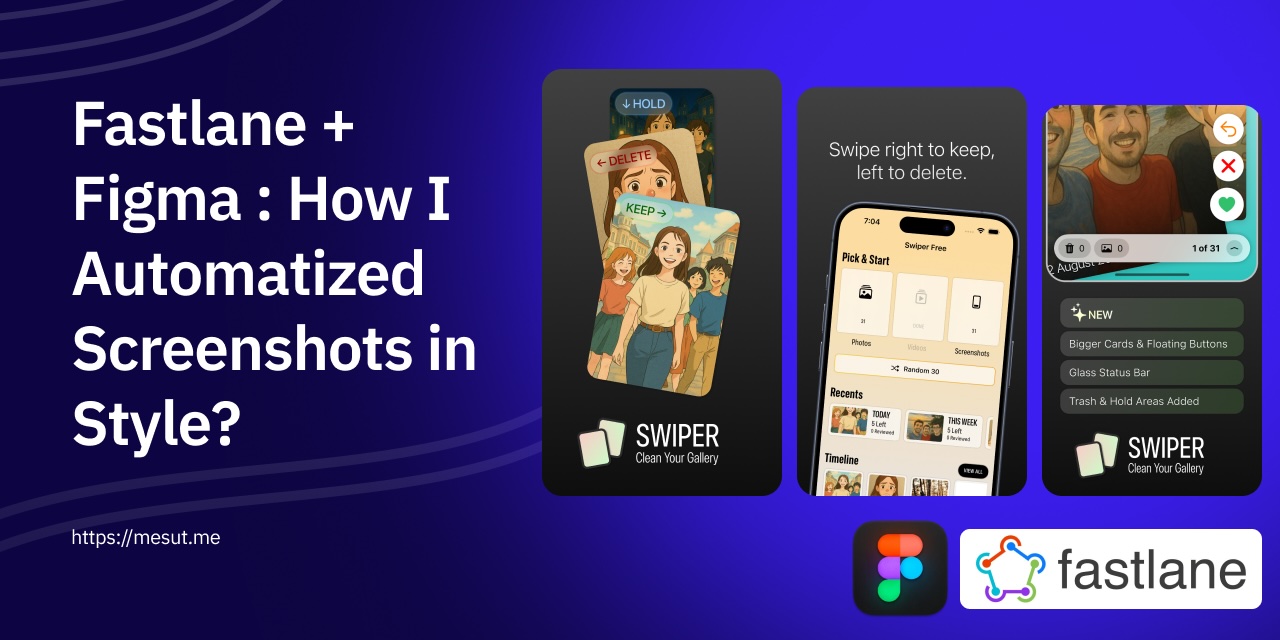
When Swiper became available to more users, I found myself enjoying the process of observing different cultures and how they approach a product I’ve designed. Localization, however, is still both an art and an effort. Even with AI translations, subtle tone differences stand out to native speakers.
One surprisingly complex part of localization is screenshots. The localized screenshots contribute more to the product’s appeal than I initially expected.
So, I started looking for a smart and aesthetic way to streamline my screenshot generation workflow. That’s when I decided to combine Fastlane, Figma, and a bit of automation.
In my case, I needed:
5 ss x 3 size x 12 locales = 180 varitations
This meant 180 screenshots to prepare and keep consistent.
Here’s what I learned along the way. (I had never worked with UITests or the Figma API before — luckily, LLMs helped flatten the learning curve.)
here is the repository with scripts and detailed instructions.
And here are two preview videos of the automation in action:
Fastlane automation
Figma automation via my plugin
1. Why Both Fastlane and Figma?
Fastlane is still a popular choice for iOS screenshot automation. It’s lightweight and uses UITests in the test target. It also has built-in “framing” to place screenshots inside device frames.
Figma, on the other hand, excels at collaboration and revision management. Instead of defining frames in JSON, I can design layouts visually in Figma and see instant results.
So I decided to use both tools for their strengths:
Fastlane → generates localized screenshots programmatically.
Figma → applies scalable layouts and typography in a collaborative, visual way.
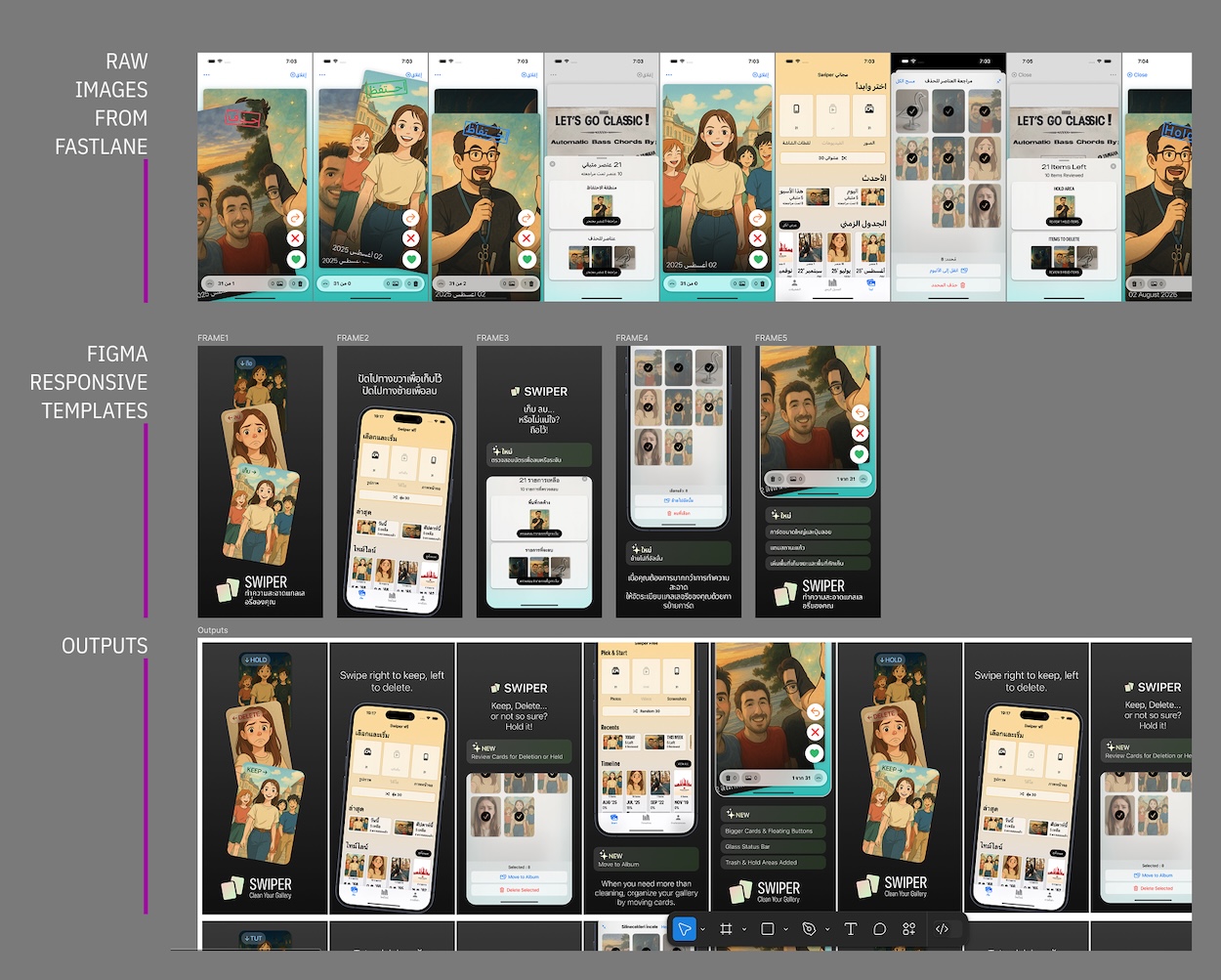
My Figma template: the plugin visits template frames, fills images for each language, and inserts text from a JSON object.
I created Auto Layout frames in figma; when i resize the frame, content adapts to the frame and have desired arrangement. Some examples are below.
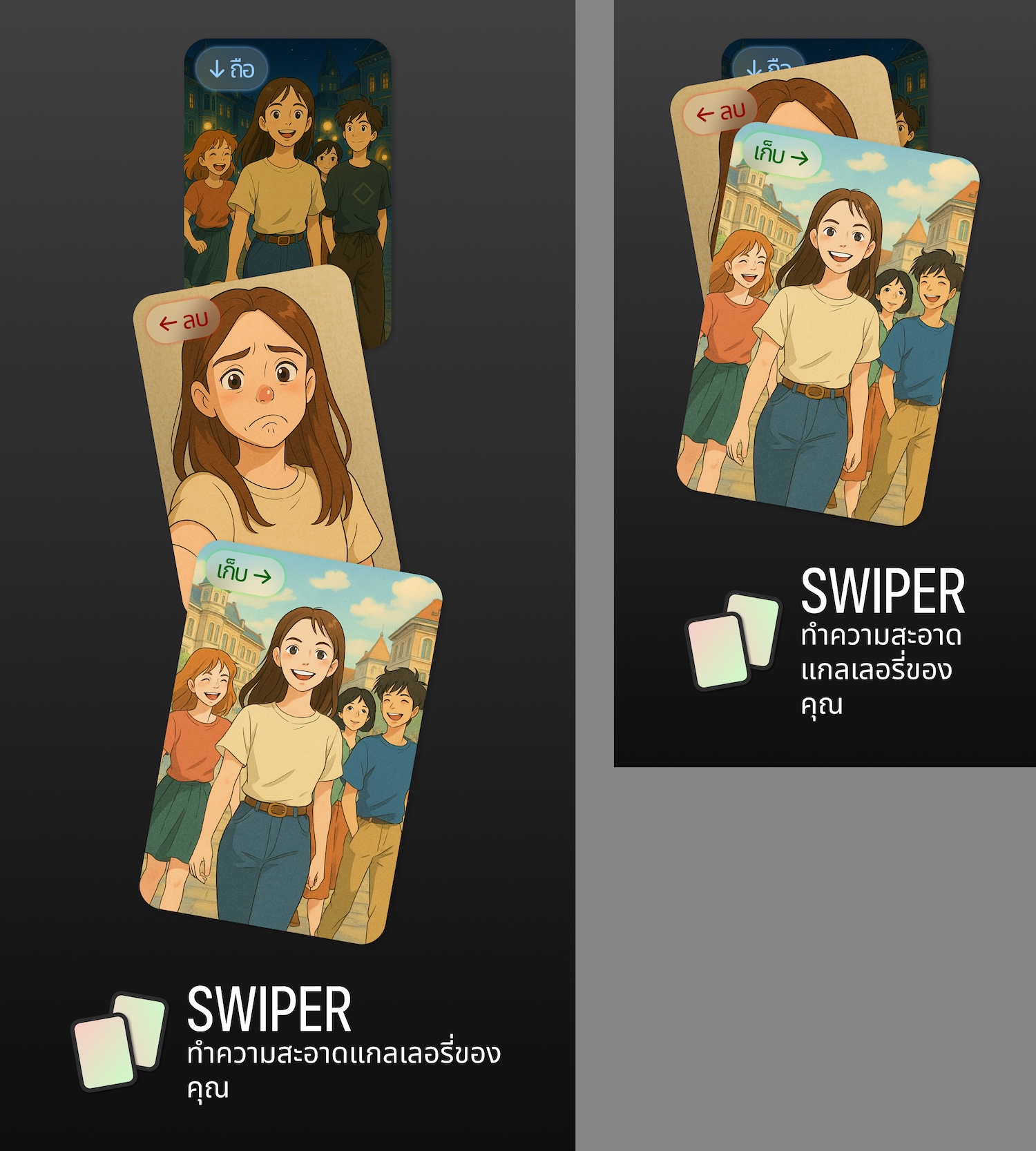
On a tall device like a 6.9” iPhone, cards are spaced out; on a smaller screen, they become a tight card deck.
Or when the content is important like below, auto layout can be started from bottom to top.
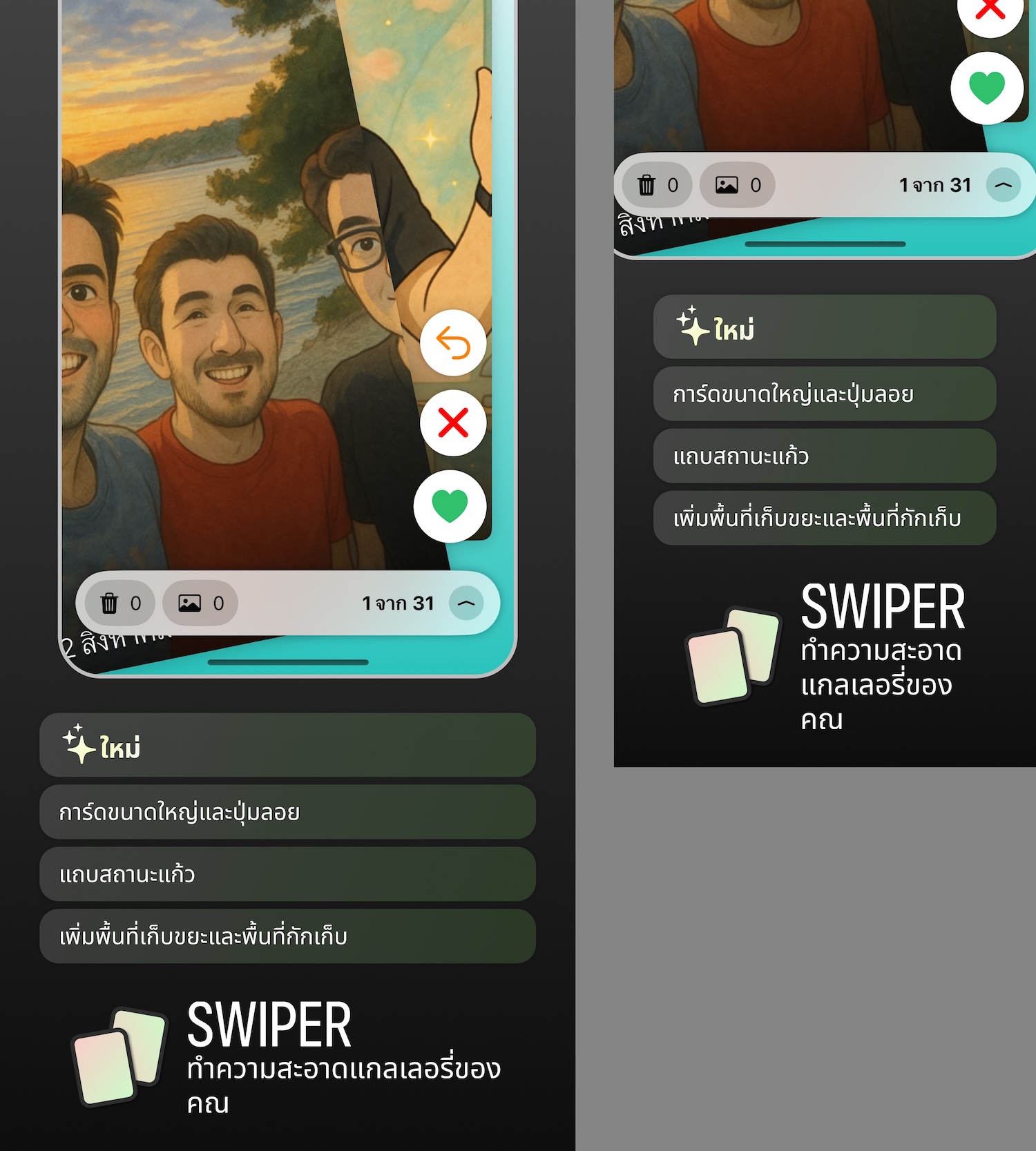
The plugin, works with two dat source;
- the localized images (from fastlane output, are being dragged to the Figma window, manually.)
- text localizations from codebase
It matches them to Figma layers by name, so keeping consistent layer names is essential.
2. Tips for UI Testing
My biggest issue during UI testing? Simulator caching.
When switching languages, the simulator sometimes displayed an app version from 1–2 builds earlier. After much searching, I discovered the problem: my Fastlane configuration was pointing to the Release build, while I had only ever run Debug builds on the simulator.
Lesson: check the basics before overcomplicating the investigation.
3. When to Trust (and Not Trust) AI
In Swiper, the main action is swiping left or right. I wanted screenshots to capture a swipe in progress.
Manually, this is easy — keep your finger on the screen, then press the screenshot button. But in UITests, it’s not that simple.
An LLM initially suggested ways to capture mid-swipe, but eventually admitted it wasn’t feasible (in practice).
My workaround: I added a test-only view that appears only with a launch parameter. The buttons apply a rotation to the card stack, simulating a mid-swipe.
This moment reminded me some discussions in development teams; test engineers who write test scenarios need this kind of test buttons, otherwise they’ll find themself to achieve almost impoosible things to develop. When developers add specific purpose buttons for testing, it makes code less maintainable. Still, there is some ways to make the codebase organized, like extending the views and having some central rules.
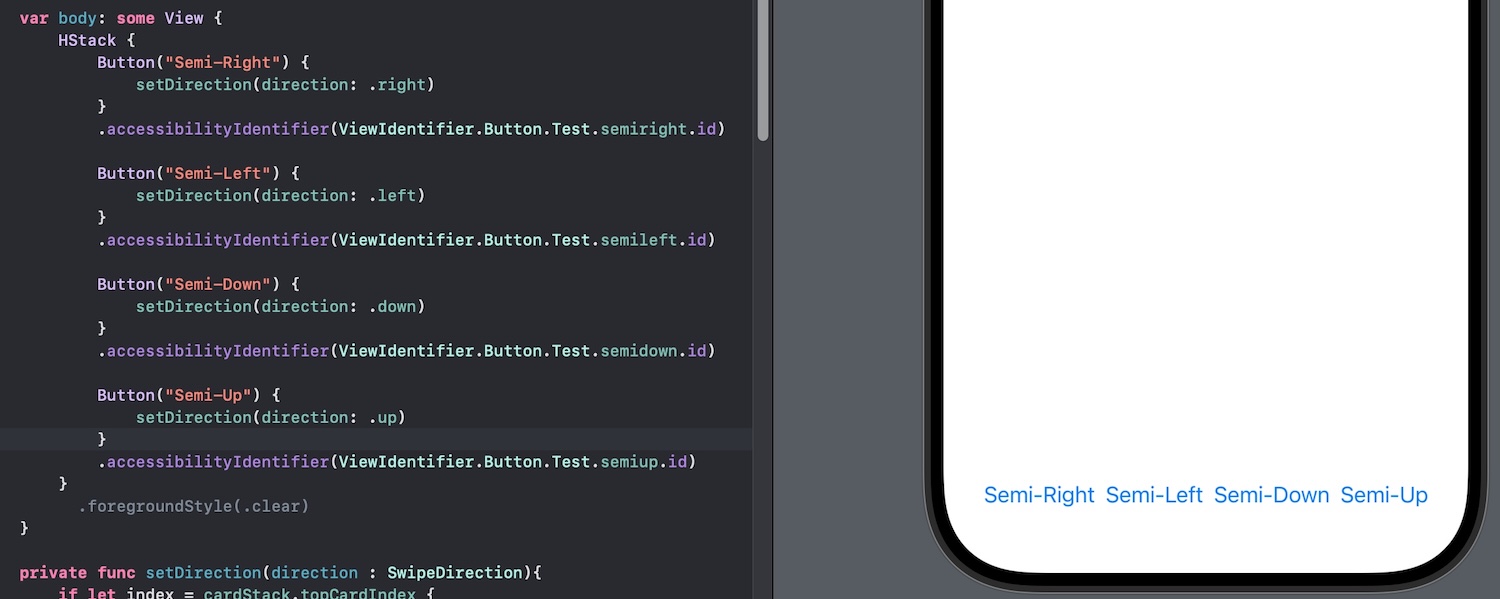
These buttons are colored with .clear to not affect the screenshots.
4. Attention!
Attention to the namings of the files!
When I created 60 images from Fastlane, I used mac’s batch renaming feature, and i simply give them names like en-1.jpg, en-2.jpg.
I lost at least 10 minutes to understand why en-1 and ar-1 are screenshots for different pages. It ended up, while renaming files in batch, mac lost the order and couldn’t keep the order. :)
So after this experience, I’ll try to solve this issue by solving the naming issues at the root, or allocate my one minute to write a bash mv command to rename files to keep their order.
5. Figma’s Performance
As a user, Figma feels fast. But as a plugin developer, performance requires special care.
During vibing (coding) the plugin code, Figma was giving memory errors frequently, which reminds me a time of working with MCUs.
Reaching a layer in Figma seems like reaching a dom element, but it has some differences. When I figure out the structure, it was easy to understand memory errors and remove nested loops. If it was a frontend project, that loops won’t cause any performance issues, but Figma’s structure to handle more object; the more design features in the file, can sometimes require effort.

Another observation; when i drag and drop an image, Figma took filename as layer name. It became so useful. When I renamed the files, i see that figma layer names updated. Nice!
After creating 180 images, I noticed that, something was out of line. I guess it was because of loading performance, added some delays… But it was the Figma’s performance precaution; Figma tooks the hash of images; when I delete and redrag the image file, Figma was not renaming the layer, it was using the old name when that image hashed.
Why only a few affected?
I’m not sure, but my best guess, the effected files were the first ones I tried and I hit save button after trying those. And while I add new images i didn’t hit the save button, they were renamed as expected. I don’t know the reason but checking the names would be a routine of mine for the next time. Maybe when a plugin iterates over the objects, the memory object might be causing this.
Whatever it is.
6. Last but not Least!
After all this automation, I still managed to upload es screenshots to the en locale in App Store Connect — and noticed only while writing this post.
A fitting reminder that no matter how much we automate, there’s always room for a small human slip.